Quick summary
- An empty Offers list is often a quiet moment at your station, not a fault. Amazon says offers are added through the day and availability changes.
- Work through the causes in order: standing, region and filters, time of day, the app and network, then account age and offer type.
- Refreshing from several devices, or handing your password to a cloud service, makes things worse, not better.
- A tool on your phone can react faster to an offer that appears. It cannot create offers where there are none.
You open Amazon Flex, the list is empty or shows one block you cannot use, and ten minutes later it is still the same. Meanwhile other drivers in the group chat are posting screenshots of accepted blocks.
This guide covers the first question, not the tactics: why is nothing showing, and in what order should you check it? If you already see offers and want more of them, read how to get more Amazon Flex blocks instead.
What "No Blocks Available" Usually Means
In most cases it means more drivers are looking than offers have been released at your station right now. Amazon's FAQ says offers are added throughout the day at varying frequency, depending on the orders customers place, and that availability can change and is not assured. A good block on a busy list can be gone in seconds.
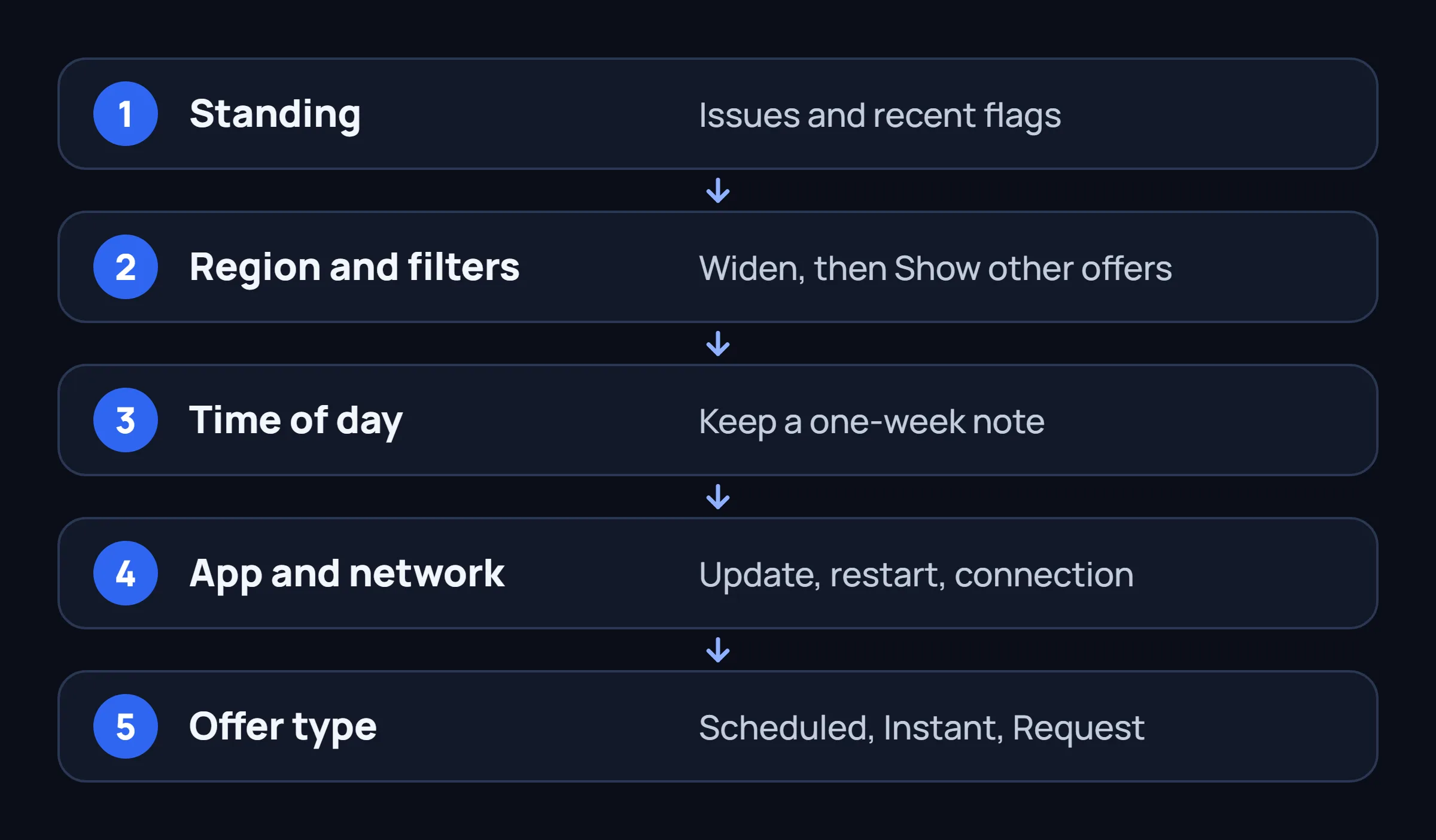
So an empty list does not prove something is wrong with your account. It does not prove the opposite either. The checks below go from the most common cause on your side to the least, and most of them take a minute.
Bots used to be part of the answer. In March 2025 Amazon wrote that bot acceptance of blocks fell by more than 98% in a year and that fewer bots means more blocks for people. So in 2026 an empty list is more likely to be about demand at your station, your filters or your standing than about someone's script.
Check 1: Your Standing and Open Issues
Many drivers report that a low standing goes together with thin or empty lists. Amazon does not publish how standing affects what you see, or how many offers a given standing gets, so treat this as a driver report and not a rule.
Open your account area in the app and read your current standing and any recent issue, such as a late cancellation or a missed check-in. If something is there, the fix is slow and plain: complete blocks on time. Our guide to Amazon Flex issues and standing covers what counts as an issue and how drivers recover.
If the account is disabled, the app says so, and Driver Support is the only route. Amazon's FAQ lists the in-app Help menu and the Driver Support contact options.
Check 2: Region, Station and Filters
Offers depend on the service area you selected when you signed up. Amazon's FAQ says a region change is possible only under conditions tied to your Rewards level, so a quiet region stays quiet for you until you change it. Markets also differ by country, Mexico included, so check the Flex help pages for the country you drive in.
Then look at your own filters. On the Offers page you can set filters for location and time, and the FAQ describes a "Show other offers" option that lists offers outside those filters. A narrow filter combined with a quiet station gives you an empty screen that looks like a fault.
- Widen the filters once, then look at the full list.
- Check which stations are included and whether your time range is too tight.
- If you use Preferred Scheduling, remember that Amazon says it does not change the filters you set on the Offers page or how many offers you see.
Check 3: Time of Day and Release Patterns
Amazon says offers can be scheduled up to seven days ahead and that new ones are added through the day. Drivers describe busier moments in the morning and evening, but those patterns vary by station and change over time. Amazon publishes no release schedule, so any exact time you read in a forum is one driver's local experience.
Keep a short note for a week: the time you looked, the station, and whether the list was empty. After a few days your own pattern tells you more than anyone's general advice. The timing windows drivers mention most are collected in the timing section of our tips guide.
Check 4: The App Itself
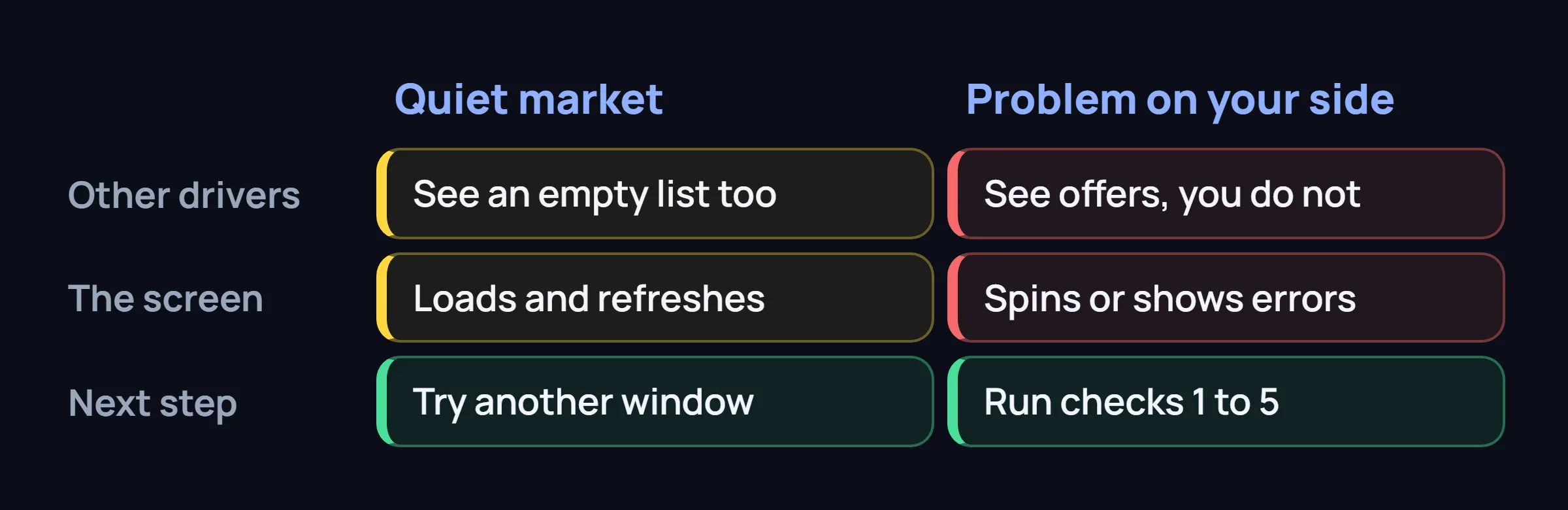
If the screen loads but stays empty and pull-to-refresh behaves oddly, the problem may be on the phone and not in the market. One test separates the two: ask a driver at the same station whether their list is empty too. If theirs is full and yours is not, work through this list.
- Update the app. Amazon's FAQ says to get the latest version from your app store.
- Force-close and reopen it. A stuck session can keep showing an old list.
- Check the connection. Some drivers report a message like "awaiting network connectivity". Switch between Wi-Fi and mobile data, and turn off airplane mode and any VPN. This is common phone troubleshooting, not something the FAQ spells out.
- Check date and time. Set them to automatic, since a wrong clock can break loading and sign-in on many apps.
- Check location services. Amazon lists GPS location services among its device requirements.
If the app still shows an error or loads nothing, contact Driver Support from the app and describe what you see.
Check 5: A New or Recently Reactivated Account
Drivers on forums often say the first weeks bring a thin list that improves as they complete blocks. We found no Amazon statement about this, so read it as a pattern drivers report, not a promise or a rule.
If you are new, the practical advice is the same as for anyone. Keep filters wide, look at the stations in your region, and take the blocks that fit while you build a clean record.
Check 6: Scheduled Offers, Instant Offers, Request and Start Soon
The Flex app shows more than one kind of opportunity, and each lives in a different place. Looking in the wrong one is a common reason for "nothing there".
- Scheduled blocks appear on the Offers page and are booked ahead. Reserved offers are shown to you exclusively for a limited time, and Amazon says other drivers see them after they expire.
- Instant Offers start soon after you accept. Amazon describes an Online option on the Offers screen that appears near participating locations, and says to turn it on within 15 minutes of the pickup site for the best chance of receiving one. Our Instant Offers guide has the full checklist.
- New block types such as one-hour, Amazon Now, large vehicle and overnight blocks show up only in some areas, and some need a filter or the right vehicle in your settings. See Amazon Flex block types in 2026.
- The Request tab works differently from live Offers in some markets. Read how the Request tab works before you decide Offers is dead.
- Start Soon is a label some drivers report for near-term blocks. Amazon does not define it as a separate type, and our Start Soon guide explains what to check.
What Not to Do When the List Is Empty
Two shortcuts that tend to backfire
Do not refresh from several devices at once, and do not give your Flex email and password to a cloud service that promises blocks. Amazon has published that it works to remove bots and automated tools from the app, and a server that logs in as you is the easiest pattern to spot. We explain why in why cloud bots put accounts at risk.
Hammering refresh does not make offers appear. Drivers also report that too much manual refreshing can bring up a verification check, covered in our CAPTCHA jail guide.
For the range of tools out there, start with what to check before you install any Amazon Flex bot and how these bots work. Neither changes the facts above.
Where an On-Phone Tool Fits
An on-phone tool solves one problem: noticing and accepting an offer faster than a person can once one appears. FlexCatcher watches the Offers screen on your own Android phone and accepts blocks that match your filters. It needs no Flex login and no password, it has built-in breaks, and if the Flex app shows a check such as a CAPTCHA, it stops and waits for you.
It cannot create offers where there are none. If your region is quiet, your standing is low, or the app is not loading, a tool has nothing to react to.
There is also a risk. Amazon says it works against bots and automated tools, and any third-party tool carries some risk to your account, including deactivation. The decision is yours, and the checks above are worth doing first either way.
Sources
- Amazon Flex FAQ, checked November 2026
- Amazon Flex blog: updated Instant Offers, April 25, 2025, updated August 19, 2026
- Amazon Flex blog: how eliminating bots has improved your experience, March 26, 2025
- Amazon Flex blog: removing bots, November 14, 2023
Common Questions About Missing Blocks
Why does Amazon Flex show no blocks available?
Most often because more drivers are looking than offers are released at your station. Amazon says offers are added through the day and availability changes. If your list is empty while others at your station see offers, check your standing, filters, region, and the app itself.
Is the Flex app broken when the Offers list is empty?
Not necessarily. If the screen loads and refreshes normally, an empty list is usually a quiet market. If it spins, errors, or keeps showing a network message, update the app, check the connection, and contact Driver Support.
Do I get fewer offers on a new account?
Drivers often report thin lists in the first weeks. We found no Amazon statement on it, so treat it as a driver report. Keep your filters wide and complete the blocks you accept on time.
Can FlexCatcher make blocks appear?
No. It watches your Offers screen and accepts blocks that match your filters when they appear. It cannot add offers to a quiet market, and any third-party tool carries some risk to your account.
Offers do appear. Be there when they do.
FlexCatcher runs on your phone, applies your filters, and taps only when a block matches. 7 days free, no card, no Flex password.
Try FlexCatcher free